
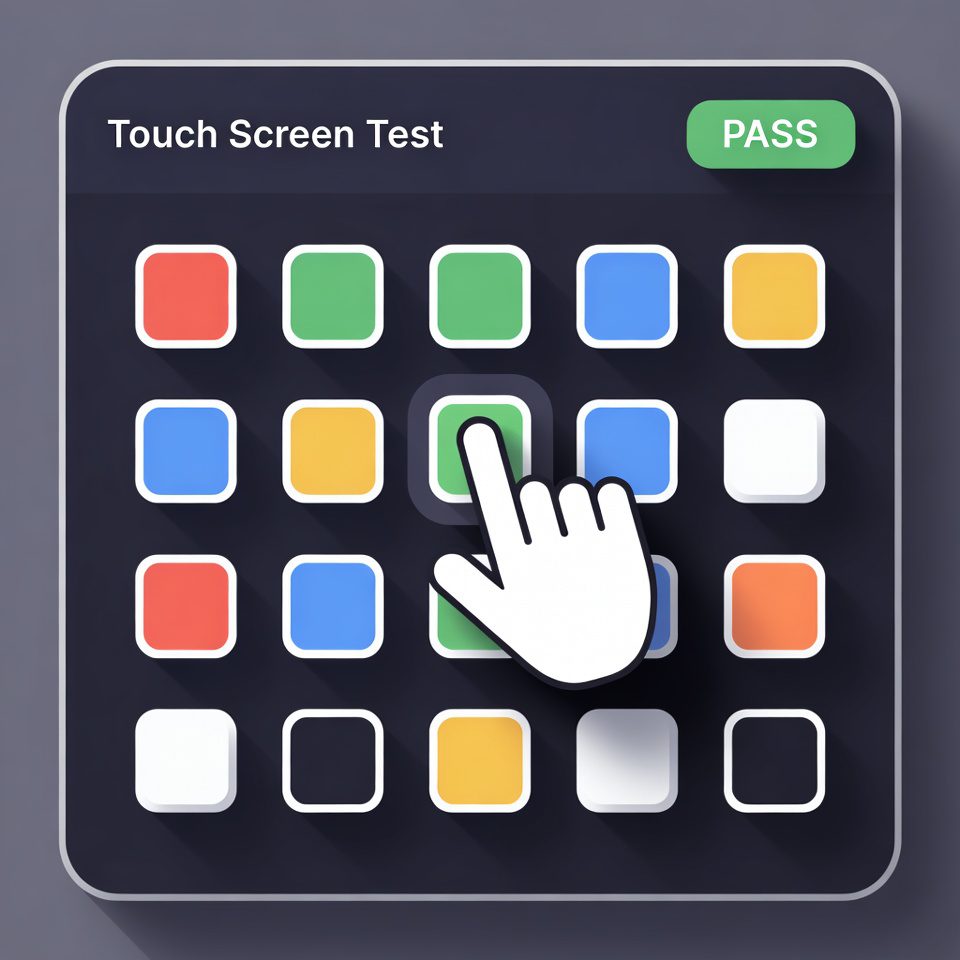
Touch Screen Test Tool
This tool helps you test your device’s touch screen capabilities, including multi-touch support, touch accuracy, and responsiveness. It’s useful for checking if your touchscreen is working properly and for diagnosing potential issues.
How to use: Touch or click in the test area below. The tool will track and display your touch points and movements. You can test multi-touch by using multiple fingers if your device supports it.
Touch Screen Test Tool | Check Your Screen Online
Test your touch screen for dead zones and accuracy. Our free online touch screen tester helps diagnose problems on phones, tablets, and touchscreen devices.
Introduction
Is your touch screen responding unpredictably? Noticing dead zones where taps don’t register? Touch screen issues can be frustrating and expensive if you replace hardware unnecessarily. A touch screen test tool helps you diagnose problems accurately before taking your device for repair. This guide will show you how to identify common touch screen issues and how our free testing tool provides instant diagnostics.
What is a Touch Screen Test Tool?
A touch screen test tool is an online diagnostic application that checks your device’s touch screen functionality. It identifies unresponsive areas, measures accuracy, and verifies multi-touch capabilities.
Our comprehensive tester evaluates:
- Touch responsiveness across the entire screen
- Dead zone detection for unresponsive areas
- Multi-touch capability for gesture recognition
- Touch accuracy and precision measurement
- Pressure sensitivity (on supported devices)
Why Regular Touch Screen Testing Matters
Proactive testing can save you time, money, and frustration by identifying issues early.
1. Early Problem Detection
Catch developing issues before they become major problems that affect device usability.
2. Repair Decision Making
Determine whether your device needs professional repair or if issues can be resolved through software solutions.
3. Used Device Verification
Test touch screen functionality when buying or selling used phones, tablets, or touchscreen laptops.
4. Quality Assurance
Manufacturers and repair technicians use these tools to verify screen functionality after repairs or production.
Common Touch Screen Problems
Understanding these common issues helps you interpret test results accurately.
Dead Zones
Specific areas of the screen that don’t respond to touch, often caused by physical damage or manufacturing defects.
Ghost Touching
The screen registers touches without physical contact, usually indicating hardware failure or moisture damage.
Inaccurate Touch Registration
Taps register in the wrong locations, making precise interactions difficult and frustrating.
Multi-Touch Failure
The screen cannot recognize multiple simultaneous touches, affecting pinch-to-zoom and gaming functionality.
Key Features of Our Touch Screen Tester
Our tool provides comprehensive diagnostics with these user-friendly features.
- Visual Feedback: See exactly where touches register with real-time display
- Dead Zone Mapping: Identify unresponsive areas with color-coded results
- Multi-Touch Testing: Verify gesture recognition with multiple finger tracking
- Accuracy Measurement: Test touch precision with target exercises
- Report Generation: Save test results for comparison or sharing with repair technicians
How to Test Your Touch Screen
Running a comprehensive diagnostic takes just a few simple steps.
- Access Our Tool: Open the tester on the device you want to check
- Follow Prompts: Complete the series of touch exercises as directed
- Review Results: Analyze the visual report showing your screen’s performance
Interpreting Test Results
Understanding what the diagnostics mean helps you make informed decisions.
Perfect Score
All areas respond accurately, multi-touch works, and no dead zones detected. Your screen is functioning correctly.
Minor Issues
Small dead zones or slight inaccuracies that may not affect daily use but should be monitored.
Major Problems
Large unresponsive areas, significant inaccuracies, or ghost touching indicate need for professional attention.
Troubleshooting Common Issues
Before seeking repairs, try these simple solutions for minor touch screen problems.
Clean Your Screen
Dirt, oil, and residue can interfere with touch sensitivity. Use appropriate screen cleaning products.
Remove Screen Protectors
Poor quality or damaged screen protectors can cause touch responsiveness issues.
Restart Your Device
Software glitches can sometimes cause temporary touch screen malfunctions.
Check for Updates
Manufacturers often release updates that address touch screen performance issues.
Conclusion
Touch screen issues can range from minor annoyances to complete device failure. A reliable touch screen test tool provides the diagnostic information needed to understand your device’s condition and make informed repair decisions. Whether you’re troubleshooting your own device, verifying a used purchase, or performing quality checks, proper testing saves time and money by accurately identifying touch screen problems.
Ready to diagnose your touch screen? [Use our free Touch Screen Test Tool now] and get instant clarity on your device’s performance!
Checkout our new tool Time Difference Calculator…
Frequently Asked Questions (FAQs)
Is this touch screen test tool completely free?
Yes, 100% free with no usage limits, registration requirements, or hidden costs.
What devices can I test with this tool?
It works on any device with a touch screen and web browser, including smartphones, tablets, and touchscreen laptops.
Will this tool fix my touch screen problems?
No, it’s a diagnostic tool that identifies issues. However, it helps you determine the right solution for your specific problem.
How accurate are the test results?
The tool provides reliable diagnostics that accurately reflect your screen’s current performance and issues.
Is this touch screen test tool completely free?
Yes, 100% free with no usage limits, registration requirements, or hidden costs.
What devices can I test with this tool?
It works on any device with a touch screen and web browser, including smartphones, tablets, and touchscreen laptops.
Will this tool fix my touch screen problems?
No, it’s a diagnostic tool that identifies issues. However, it helps you determine the right solution for your specific problem.
How accurate are the test results?
The tool provides reliable diagnostics that accurately reflect your screen’s current performance and issues.