PDF to Image Converter
Convert PDF pages to high-quality image files
About This Tool
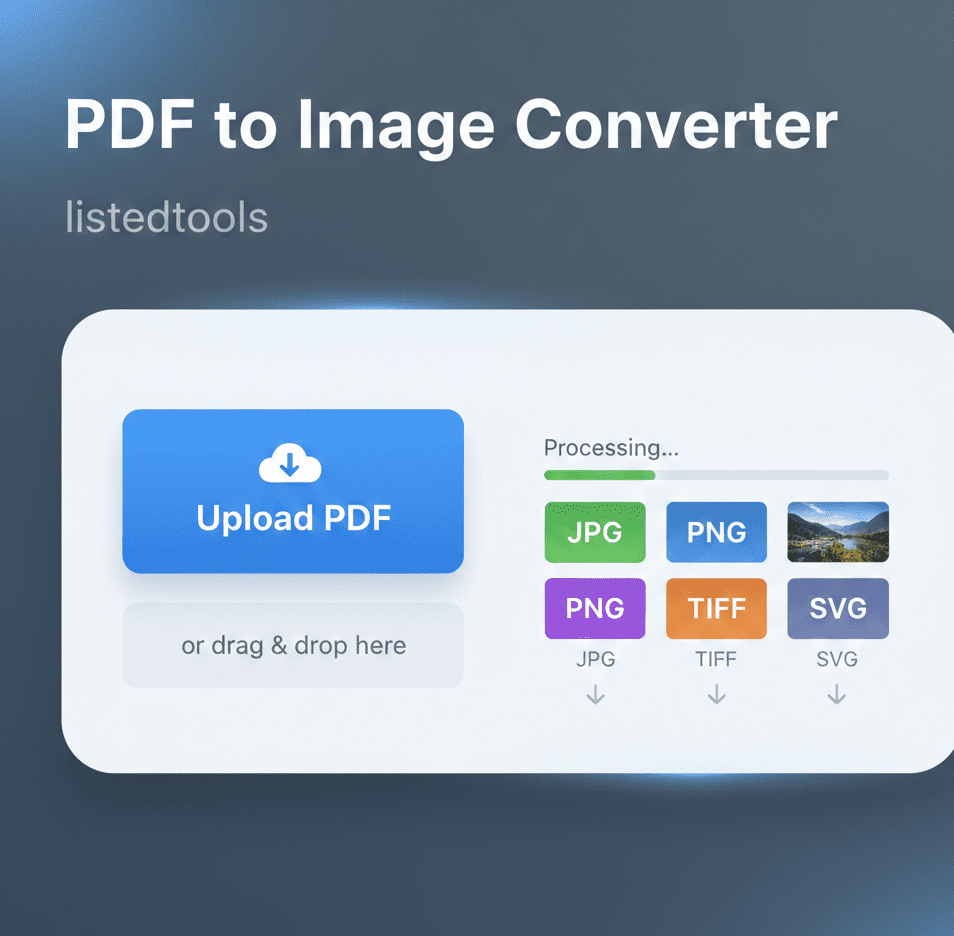
Our PDF to Image converter transforms PDF documents into various image formats including JPG, PNG, and TIFF. This tool is perfect for extracting images from PDF files, creating visual presentations, or making your document content more accessible in image format.
The converter maintains the original quality and resolution of your PDF while giving you options to customize the output format and quality settings.
Upload Your PDF File
Drag & drop your PDF file here or click to browse
File:
Total pages: 0
Conversion Options
Preview
How to Use
Image Format Comparison
| Format | Best For | Pros | Cons |
|---|---|---|---|
| JPG | Photos, complex images | Smaller file size, good for web | Lossy compression, no transparency |
| PNG | Graphics, text, diagrams | Lossless quality, supports transparency | Larger file size than JPG |
| TIFF | Professional printing, archiving | Highest quality, multiple compression options | Very large file size, less web compatible |
PDF to Image Converter | Convert PDF to JPG, PNG
Convert PDF pages to high-quality images instantly. Our free PDF to image converter creates JPG, PNG, or TIFF files from any PDF document.
Introduction
Need to extract images from a PDF document? Want to convert PDF pages into shareable image files for presentations or social media? PDFs are versatile for documents, but sometimes you need individual images. A PDF to image converter transforms your PDF pages into high-quality image files quickly and easily. This guide will show you why PDF to image conversion matters and how our free tool helps you create perfect images from any PDF.
What is a PDF to Image Converter?
A PDF to image converter is an online tool that transforms Portable Document Format (PDF) pages into image files like JPG, PNG, or TIFF. It extracts each page as a separate image while maintaining quality and resolution.
Our versatile converter creates:
- JPG images for web and sharing
- PNG files with transparent backgrounds
- TIFF format for high-quality printing
- Multi-page extraction from PDF documents
- Custom resolution images for any need
Why Convert PDF to Images?
Image files offer flexibility and compatibility that PDFs sometimes lack for specific applications.
1. Social Media Sharing
Convert PDF pages to images for easy posting on Instagram, Facebook, or other platforms.
2. Presentation Materials
Create individual slides from PDF documents for PowerPoint or Google Slides.
3. Website Content
Generate web-ready images from PDF brochures, flyers, or documents.
4. Archiving and Storage
Preserve document appearance as images for long-term storage and backup.
Key Features of Our PDF to Image Converter
Our tool provides professional conversion capabilities with these user-friendly features.
- Multiple Format Options: JPG, PNG, TIFF, and more
- Quality Control: Adjust resolution and compression
- Batch Processing: Convert multiple PDFs simultaneously
- Page Selection: Choose specific pages or convert all
- High-Quality Output: Maintain original clarity and detail
Common Conversion Scenarios
Here are practical situations where PDF to image conversion provides immediate value.
Marketing Materials
- Convert PDF brochures to images for email campaigns
- Create social media graphics from product sheets
- Extract images from catalogs for online listings
Educational Resources
- Turn textbook pages into study guide images
- Convert worksheets to images for digital distribution
- Create presentation slides from PDF lesson plans
Business Documents
- Transform reports into presentation-ready images
- Convert contracts to images for quick sharing
- Create archive copies of important documents
How to Convert PDF to Images in 3 Steps
Transforming your PDF pages into images is simple with our streamlined process.
- Upload PDF: Select your PDF file from your device
- Choose Settings: Select format and quality options
- Download Images: Get your converted image files
PDF to Image Best Practices
Follow these guidelines for optimal conversion results.
Choose the Right Format
Use JPG for photographs, PNG for graphics with text, and TIFF for printing.
Consider Resolution
Higher DPI (300+) for printing, lower (72-150 DPI) for web use to manage file size.
Select Specific Pages
Convert only needed pages to save time and storage space.
Check Image Quality
Preview converted images to ensure text readability and color accuracy.
Understanding Image Formats
Different image formats serve different purposes and use cases.
JPG/JPEG
Best for photographs and complex images with smooth color gradients.
PNG
Ideal for graphics with text, logos, and images requiring transparency.
TIFF
Perfect for high-quality printing and archival purposes with lossless compression.
BMP
Uncompressed format suitable for editing but creates large file sizes.
Conclusion
PDF to image conversion is essential for creating shareable content, presentation materials, and web-ready graphics from document files. A reliable PDF to image converter bridges the gap between document preservation and image flexibility, allowing you to repurpose PDF content across various platforms and applications. Whether you're creating social media graphics, presentation slides, or archive copies, image conversion ensures your content remains accessible and versatile.
Ready to transform your PDFs? [Use our free PDF to Image Converter now] and create high-quality images from any PDF document!
- From the creators of the PDF format; trusted and high-quality results; supports JPG, PNG, and TIFF.
Frequently Asked Questions (FAQs)
Is this PDF to image converter completely free?
Yes, 100% free with no watermarks, usage limits, or registration requirements.
Can I convert specific pages from a multi-page PDF?
Absolutely. You can select individual pages or page ranges for conversion.
What's the maximum PDF size I can convert?
We support files up to 50MB, suitable for most business and personal documents.
Will text remain readable in the converted images?
Yes, our high-quality conversion maintains text clarity and readability.
Is this PDF to image converter completely free?
Yes, 100% free with no watermarks, usage limits, or registration requirements.
Can I convert specific pages from a multi-page PDF?
Absolutely. You can select individual pages or page ranges for conversion.
What's the maximum PDF size I can convert?
We support files up to 50MB, suitable for most business and personal documents.
Will text remain readable in the converted images?
Yes, our high-quality conversion maintains text clarity and readability.