
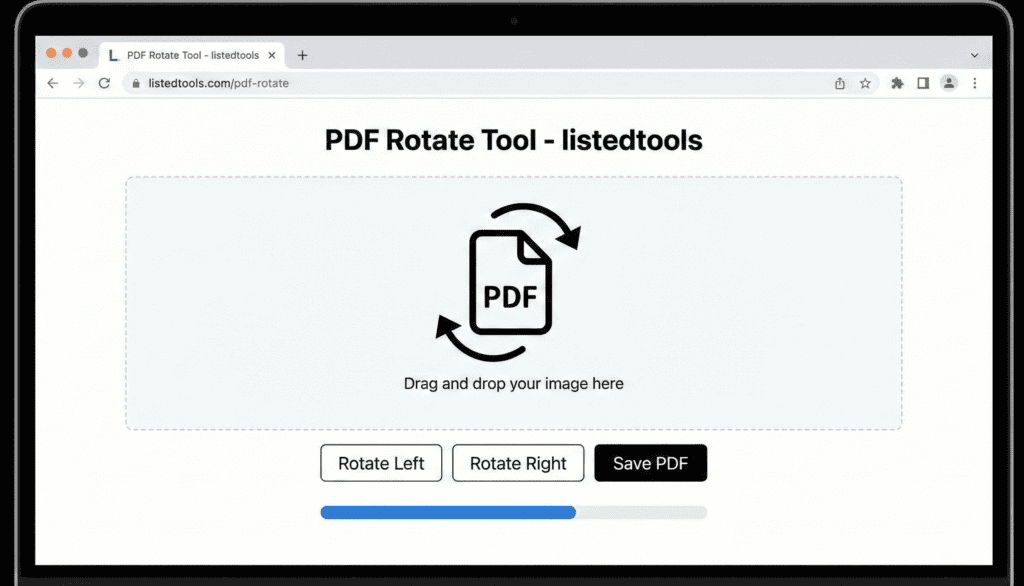
PDF Rotate Tool
Rotate pages in your PDF documents to the correct orientation
About This Tool
The PDF Rotate Tool allows you to quickly fix incorrectly oriented pages in your PDF documents. Whether you have scanned pages that are sideways or upside down, this tool makes it easy to rotate individual pages or your entire document to the correct orientation.
Simply upload your PDF, select the pages you want to rotate, choose your rotation angle, and download the corrected document.
Upload Your PDF File
Drag & drop your PDF file here or click to browse
File:
Total pages: 0
Rotate Pages
Success!
Pages rotated: 0
How to Use
Common Uses
- Fixing Scanned Documents: Correct the orientation of pages that were scanned in the wrong direction
- Landscape Pages: Rotate specific pages to landscape orientation for better viewing
- Mixed Orientations: Standardize documents that contain a mix of portrait and landscape pages
- Presentation Materials: Rotate slides or charts for proper display in presentations
- Reading Comfort: Adjust the orientation to make reading more comfortable on different devices
PDF Rotate Tool | Rotate PDF Pages Online Free
Rotate PDF pages instantly to fix upside-down or sideways content. Our free PDF rotate tool corrects page orientation with one click. No registration needed.
Introduction
Are you dealing with scanned PDF pages that are upside down or sideways? Trying to read a document with mixed page orientations that disrupts your workflow? Incorrect page orientation is a common problem with scanned documents and downloaded files. A PDF rotate tool provides the simplest solution for correcting page orientation quickly and efficiently. This guide will show you why proper page orientation matters and how our free tool fixes alignment issues in seconds.
What is a PDF Rotate Tool?
A PDF rotate tool is an online utility that changes the orientation of pages within a PDF document. It allows you to rotate individual pages or entire documents to achieve the correct reading direction.
Our versatile rotator handles:
- 90-degree rotations clockwise and counterclockwise
- 180-degree flips for upside-down pages
- Individual page rotation for mixed-orientation documents
- Multiple page rotation in one operation
- Batch processing of several PDFs
Why Proper Page Orientation Matters
Correct page orientation significantly impacts readability, professionalism, and document usability.
1. Improved Readability
Eliminate neck strain and eye fatigue from reading sideways or upside-down content.
2. Professional Presentation
Ensure documents appear correctly oriented when shared with clients or colleagues.
3. Printing Accuracy
Prevent wasted paper and ink by ensuring pages print in the correct orientation.
4. Digital Archive Quality
Maintain properly oriented documents for long-term storage and retrieval.
Key Features of Our PDF Rotate Tool
Our tool provides professional page rotation capabilities with these user-friendly features.
- One-Click Rotation: Fix orientation with single clicks
- Selective Page Control: Rotate individual pages or groups
- Preview Functionality: See changes before applying
- Quality Preservation: Maintain original PDF quality
- Mobile Optimization: Works perfectly on all devices
Common Rotation Scenarios
Here are typical situations where PDF rotation provides immediate solutions.
Scanned Documents
- Correct pages scanned upside down or sideways
- Fix mixed orientations in multi-page scans
- Standardize document appearance after scanning
Downloaded Reports
- Rotate landscape pages to portrait for better reading
- Fix incorrectly oriented charts and graphs
- Standardize orientation across multiple documents
Mobile-Created PDFs
- Correct photos taken in different orientations
- Fix documents created with mobile scanning apps
- Standardize smartphone-generated PDFs
How to Rotate PDF Pages in 3 Steps
Correcting your page orientation is simple with our streamlined process.
- Upload PDF: Select your document with orientation issues
- Rotate Pages: Choose pages and rotation direction
- Download Fixed PDF: Get your properly oriented document
PDF Rotation Best Practices
Follow these guidelines for optimal document orientation results.
Check All Pages First
Review entire document to identify all pages needing rotation before starting.
Use Consistent Orientation
Maintain uniform page direction throughout documents when possible.
Preview Before Saving
Always check rotated pages to ensure they’re correctly oriented.
Save Original Files
Keep unrotated versions until you confirm the rotated PDF meets your needs.
Understanding Rotation Options
Different rotation angles serve different orientation correction needs.
90° Clockwise
Rotates pages rightward, ideal for correcting sideways content.
90° Counterclockwise
Rotates pages leftward, alternative method for sideways correction.
180° Flip
Completely reverses page orientation for upside-down content.
Selective Rotation
Individual page control for documents with mixed orientations.
Conclusion
Proper page orientation is fundamental to document readability, professional presentation, and efficient workflow. A reliable PDF rotate tool eliminates the frustration of dealing with incorrectly oriented pages by providing quick, precise rotation capabilities. Whether you’re correcting scanned documents, standardizing reports, or preparing files for printing, easy page rotation ensures your PDFs always appear in the correct orientation for optimal viewing and usage.
Ready to fix your PDF orientation? [Use our free PDF Rotate Tool now] and transform misaligned pages into perfectly oriented documents instantly!
- Use this in your intro if you need to explain what the file type is.
Frequently Asked Questions (FAQs)
Is this PDF rotate tool completely free?
Yes, 100% free with no usage limits, watermarks, or registration requirements.
Can I rotate individual pages within a PDF?
Absolutely. You can select specific pages or rotate the entire document.
Will rotating affect my PDF’s quality?
No, rotation maintains the original quality and resolution of your PDF.
Is there a file size limit for PDFs I can rotate?
We support files up to 50MB, suitable for most business and personal documents.
Is this PDF rotate tool completely free?
Yes, 100% free with no usage limits, watermarks, or registration requirements.
Can I rotate individual pages within a PDF?
Absolutely. You can select specific pages or rotate the entire document.
Will rotating affect my PDF’s quality?
No, rotation maintains the original quality and resolution of your PDF.
Is there a file size limit for PDFs I can rotate?
We support files up to 50MB, suitable for most business and personal documents.