
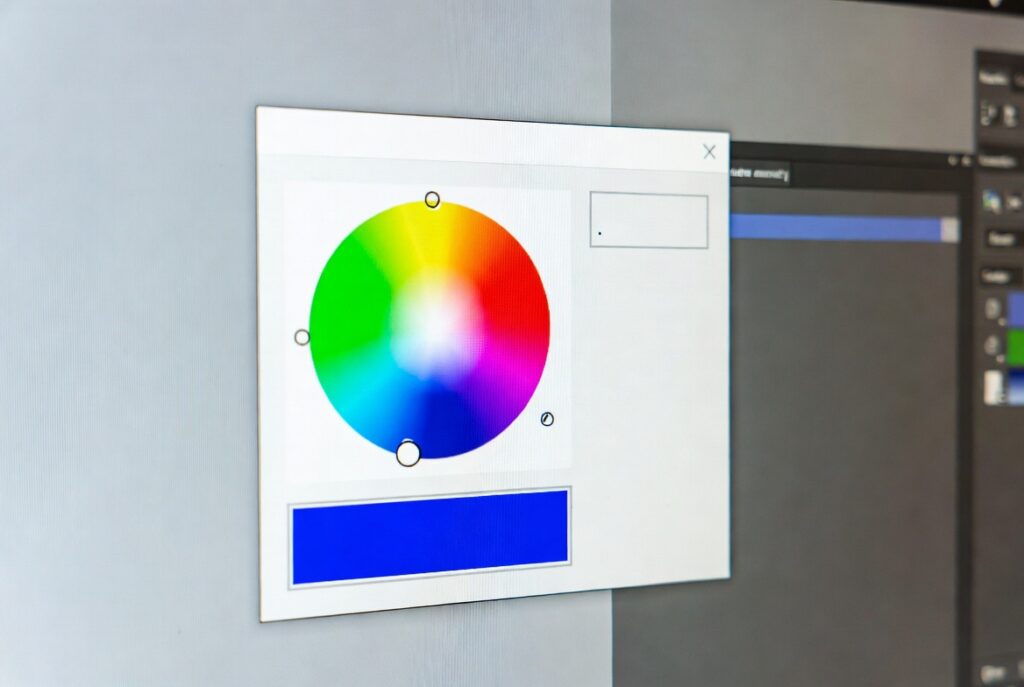
Color Picker Tool
This Color Picker Tool helps you select and manage colors for your web design projects. Choose colors using the sliders or color input, view different color formats (HEX, RGB, HSL), explore color harmonies, and save your favorite colors for future reference.
How to use: Adjust the RGB sliders or use the color input field to select a color. Click on any color value to copy it to your clipboard. Explore complementary and analogous colors, and save your favorites by clicking the “Save Color” button.
Introduction:
Ever spot the perfect blue on a website and think, “How do I get that exact color?” Or maybe you’ve wasted way too much time squinting at a client’s logo, trying to match it by eye. We’ve all been there. That’s the headache a color picker tool wipes out in seconds. This little gadget is the secret weapon for clean, consistent digital design—like a digital magnifying glass for finding the real color formula hiding in any pixel on your screen.
A color picker basically connects your creative spark to reality. Developers, marketers, bloggers—anyone who works with visuals—use it to turn color inspiration into real, usable code. In today’s world, where a brand’s identity hangs on perfect color consistency across a zillion devices, guessing just isn’t good enough. You need to get it right, every time.
So, what is a Color Picker Tool?
A color picker, sometimes called an eyedropper, is a piece of software that lets you grab the exact color value from any pixel on your screen. It doesn’t just tell you what the color is—it gives you precise codes to use that color anywhere. The best versions run right in your browser (no downloads needed) and can pick up colors from pretty much anything on your screen, even outside the browser.
At its core, this tool solves the messy problem of translating what you see into what a computer understands. That way, the bold orange you see in a design mockup ends up as the exact same orange on the finished website, app, or even printed flyer.
Key Features of a Top-Notch Online Color Picker
Here’s what the best color pickers can do:
Universal Eyedropper: Sample colors from any window, app, or tab on your screen—not just inside your browser.
Multi-Format Output: Instantly get HEX, RGB, HSL, and CMYK codes. No conversions needed.
Color History & Palette Saver: Keep a running list of recently picked colors and save custom palettes for your projects.
Advanced Adjustment: Tweak colors with HSB or RGB sliders for fine control.
Accessibility Analyzer: Check color contrast automatically to meet WCAG standards for accessibility.
Harmony Generator: Build complementary, triadic, or analogous color schemes from any shade you pick.
Zoom & Pixel Preview: Zoom in for pixel-perfect selection—crucial when details matter.
How to Use a Color Picker: 5 Steps to Precision
You can learn this in minutes, and it’ll save you hours in the long run.
- Activate the Picker
Fire up your chosen online color picker. Hit the “Activate Picker” or “Start Picking” button. Your cursor usually turns into a crosshair or eyedropper. Sometimes, the rest of the screen dims so you can focus on picking. Power users love keyboard shortcuts for this—one tap and you’re ready to go. - Hover & Find Your Color
Move the cursor to the exact spot you want to sample—could be a button, photo, or even a tiny dot in a logo. Most tools show a magnified view so you can nail the right pixel. Take your time here; sometimes a single graphic element can have subtle color shifts. - Capture & Lock In
Click to grab the color. Instantly, you’ll see a preview and get all the code formats—HEX, RGB, CMYK, you name it. Now that awesome visual is locked down in numbers you can actually use. - Copy the Code You Need
Click the code you want—say, the HEX value—and it’s copied straight to your clipboard. Paste it into your CSS, design software, or branding doc. No more manual typing, no more mistakes. - Explore Advanced Features
Don’t stop at picking colors. Use the built-in contrast checker to make sure your text is readable. Try the palette generator to build a whole color scheme. Save the color to your project history. Suddenly, you’re not just sampling—you’re running your own mini color lab.
That’s it. A color picker isn’t just a tool; it’s a must-have for anyone serious about nailing digital color, every single time.
Checkout our new tool Color Contrast Checker here….
FAQs
Is it legal to pick colors from any website?
Sampling a color for identification is generally acceptable. However, directly copying a distinctive and established color scheme (especially for a competing business) could raise trademark or “trade dress” infringement issues. Use it for inspiration and learning, not imitation.
Can I pick colors from a video or my desktop?
Yes, the most robust online tools can sample from any source because they analyze the pixel data currently displayed by your graphics card. Simply have the video paused or the desktop window visible before activating the picker.
What’s the difference between HEX, RGB, and HSL?
This is usually due to color space/profile mismatch. Web colors are typically in the sRGB color space. If your design software is set to Adobe RGB or another profile, the same numerical values will produce a different visual result. Ensure all your tools are configured to use the same color profile (sRGB is web-safe).
Why does my picked color look different in Photoshop?
This is usually due to color space/profile mismatch. Web colors are typically in the sRGB color space. If your design software is set to Adobe RGB or another profile, the same numerical values will produce a different visual result. Ensure all your tools are configured to use the same color profile (sRGB is web-safe).