
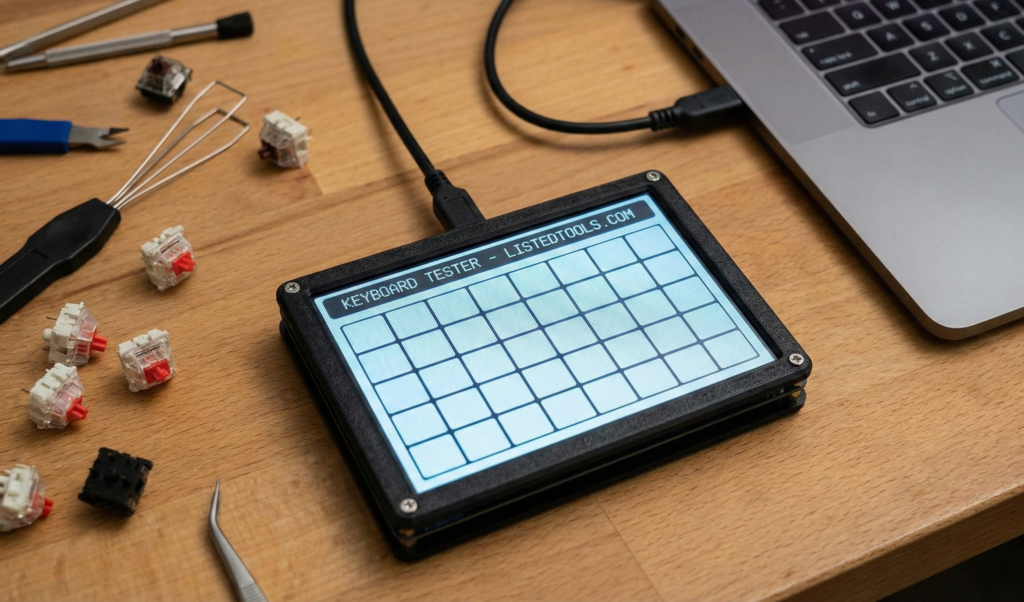
Keyboard Tester
Test your keyboard functionality to identify any keys that aren’t working properly. This tool detects keystrokes and displays which keys have been pressed, helping you verify that all keys on your keyboard are functioning correctly.
How to use: Click anywhere on this page and start pressing keys on your keyboard. Each key you press will be highlighted on the virtual keyboard below. Try to press all keys to ensure they’re working properly.
Keyboard Tester | Check Your Keyboard Online
Test your keyboard keys instantly with our free online keyboard tester. Identify faulty keys, check functionality, and troubleshoot keyboard issues easily.
Introduction
Is your keyboard acting up? Are certain keys not responding or typing wrong characters? Keyboard issues can disrupt your workflow and cause significant frustration. Before replacing your keyboard or spending on repairs, a keyboard tester can help you diagnose the problem quickly and accurately. This guide will show you how keyboard testing works and how our free tool helps you identify and troubleshoot keyboard problems in minutes.
What is a Keyboard Tester?
A keyboard tester is an online tool that allows you to check the functionality of every key on your keyboard. It provides visual feedback when keys are pressed, helping you identify which keys are working properly and which need attention.
Our comprehensive tester checks:
- All standard keys including letters, numbers, and symbols
- Function keys (F1-F12) and special keys
- Modifier keys like Shift, Ctrl, and Alt
- Navigation keys including arrow keys and Home/End
- Numpad keys for full-size keyboards
Why Keyboard Testing is Important
Regular keyboard testing can save you time, money, and frustration by identifying issues early.
1. Problem Diagnosis
Quickly determine if keyboard issues are hardware-related or software-related.
2. Preventive Maintenance
Identify failing keys before they completely stop working.
3. Purchase Verification
Test new or used keyboards before finalizing your purchase.
4. Troubleshooting Efficiency
Eliminate guesswork when diagnosing typing problems or system errors.
Key Features of Our Keyboard Tester
Our tool provides professional keyboard diagnostics with these user-friendly features.
- Real-Time Visual Feedback: See keys light up when pressed
- Comprehensive Key Coverage: Test every key on standard layouts
- Sticky Key Detection: Identify keys that remain “pressed”
- Multiple Layout Support: QWERTY, AZERTY, and other layouts
- No Installation Required: Works directly in your web browser
Common Keyboard Testing Scenarios
Here are practical situations where our tester provides immediate value.
Hardware Troubleshooting
- Identify physically damaged or unresponsive keys
- Test keyboards after liquid spills or physical impact
- Verify keyboard functionality during computer repair
Office Equipment Maintenance
- Test shared keyboards in office environments
- Identify worn-out keys needing replacement
- Maintain productivity by catching issues early
Gaming Setup Optimization
- Ensure all gaming keys respond correctly
- Test macro keys and special gaming functions
- Verify keyboard performance for competitive gaming
How to Test Your Keyboard in 3 Steps
Diagnosing your keyboard issues is simple with our straightforward process.
- Access the Tester: Open our keyboard tester in your browser
- Press Keys: Type on your keyboard and watch for visual feedback
- Identify Issues: Note any keys that don’t light up or respond
Keyboard Testing Best Practices
Follow these guidelines for accurate and comprehensive keyboard testing.
Test All Keys Systematically
Work through your keyboard methodically from top-left to bottom-right.
Check Key Combinations
Test modifier keys (Shift, Ctrl, Alt) in combination with other keys.
Try Different Pressing Methods
Test keys with varying pressure and typing speeds.
Compare with Another Keyboard
If possible, test with a known working keyboard for comparison.
Understanding Common Keyboard Issues
Different symptoms indicate various types of keyboard problems.
Non-Responsive Keys
Keys that don’t register any input when pressed, often due to physical damage.
Sticky Keys
Keys that remain activated after being pressed, usually from debris or mechanism failure.
Incorrect Characters
Keys that type wrong characters, typically a software or driver issue.
Intermittent Response
Keys that work sometimes but not consistently, suggesting connection issues.
Conclusion
Keyboard testing is an essential diagnostic skill for anyone who relies on their computer for work, gaming, or daily use. A reliable keyboard tester provides immediate insights into your keyboard’s health, helping you make informed decisions about repairs, cleaning, or replacement. Whether you’re troubleshooting existing issues, verifying new equipment, or performing routine maintenance, comprehensive keyboard testing ensures your primary input device remains reliable and responsive.
Ready to check your keyboard? [Use our free Keyboard Tester now] and identify any issues with your keys instantly!
- Best Anchor Text: “how keyboard ghosting works” or “Microsoft’s explanation of ghosting”
Frequently Asked Questions (FAQs)
Is this keyboard tester completely free?
Yes, 100% free with no usage limits, registration requirements, or hidden costs.
Does it work with all types of keyboards?
Yes, our tester works with mechanical, membrane, laptop, and USB keyboards.
Can I use it on mobile devices?
While designed for physical keyboards, it works on mobile devices with external keyboards.
Will the tester work without internet?
The tester requires initial internet access to load, then functions offline.
Is this keyboard tester completely free?
Yes, 100% free with no usage limits, registration requirements, or hidden costs.
Does it work with all types of keyboards?
Yes, our tester works with mechanical, membrane, laptop, and USB keyboards.
Can I use it on mobile devices?
While designed for physical keyboards, it works on mobile devices with external keyboards.
Will the tester work without internet?
The tester requires initial internet access to load, then functions offline.