
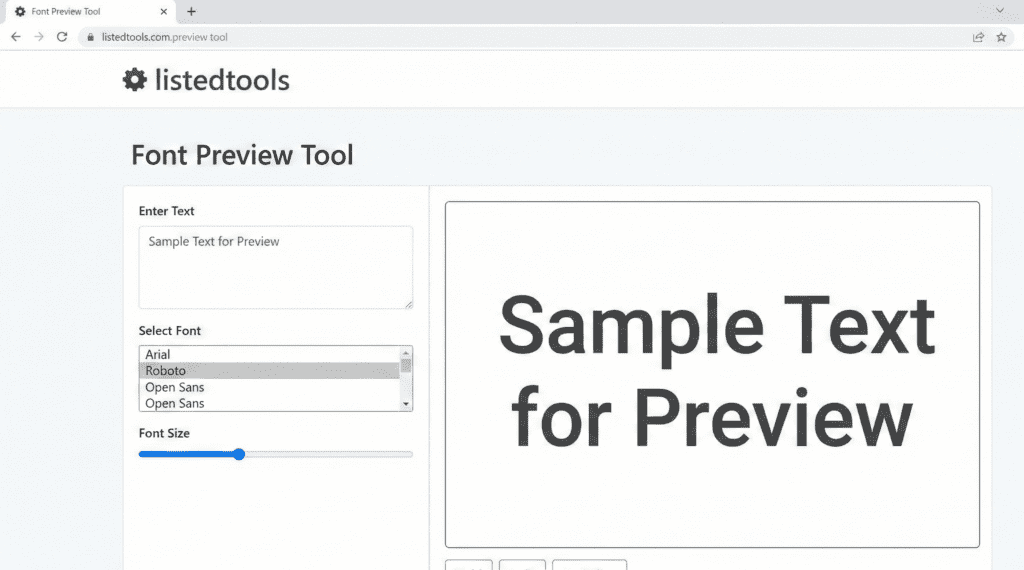
Font Preview Tool
About this tool: Browse, preview and test different Google Fonts for your website. This tool provides a live preview of how text will look with various fonts, sizes, weights, and styles.
How to use: Search for fonts by name or filter by category, then select a font from the list. Adjust text properties like size, weight, and color to see how they look. Copy the generated HTML and CSS code to use in your projects.
Loading fonts…
Font Family: Roboto
Category: Sans Serif
Available Weights: 100, 300, 400, 500, 700, 900
Available Styles: Normal, Italic
<!-- HTML -->
<link href="https://fonts.googleapis.com/css2?family=Roboto:wght@400&display=swap" rel="stylesheet">

/* CSS */
.my-text {
  font-family: 'Roboto', sans-serif;
  font-size: 24px;
  font-weight: 400;
  color: #333333;
}
Online Font Preview Tool | Test Fonts Instantly
Preview 1000+ fonts with your custom text using our free online tool. Compare font styles, sizes, and colors before using them in your designs.
Find the Perfect Font with a Font Preview Tool
Are you tired of downloading countless fonts only to discover they don’t look right in your project? Choosing the wrong typography can undermine your entire design. A Font Preview Tool is the ultimate solution for designers, developers, and content creators. This essential utility allows you to visualize how any font will appear with your specific text, size, and color before you commit to it. This guide will show you how to leverage font previewing to make confident typographic choices and elevate your creative projects.
What is a Font Preview Tool?
A Font Preview Tool is an online application that lets you test and compare different typefaces in real-time. Instead of installing fonts on your system, you can instantly see how they render directly in your web browser.
Key features typically include:
- A library of hundreds of web-safe and Google Fonts.
- Customizable text input.
- Adjustable font size, color, and background.
- Side-by-side comparison capabilities.
This provides a risk-free environment for typography experimentation.
4 Critical Benefits of Using a Font Preview Tool
Integrating a font previewer into your workflow offers significant advantages:
- Saves Time and Storage
Skip the lengthy process of downloading and installing fonts. Preview countless options online without clogging your system’s font library. - Informs Better Design Decisions
See exactly how a font pair (e.g., a heading and body font) work together. This prevents clashing typography and ensures visual harmony. - Ensures Readability and Accessibility
Test your chosen font at different sizes and weights to guarantee it’s legible for all users, a key factor in web accessibility standards. - Confirms Brand Consistency
Visualize your brand name or slogan in a new font to ensure it aligns with your company’s identity and messaging before making a final decision.
How to Use Our Free Font Preview Tool
Our tool is designed for simplicity and power, giving you professional results in three easy steps.
- Enter Your Text: Navigate to our Font Preview Tool. In the text box, type the exact phrase you want to style (e.g., your company name, a headline, or body text).
- Customize the Preview: Use the dropdown menus to browse the font library. Adjust the font size, color, and background to match your project’s environment.
- Analyze and Select: Scroll through the rendered results. When you find the perfect font, note its name for use in your design software or CSS code.
The instant feedback allows for rapid iteration and perfect selection.
What to Look For When Choosing a Font
A great Font Preview Tool helps you evaluate these essential typographic criteria:
- Readability: Is the text easy to read, especially in longer paragraphs?
- Mood and Tone: Does the font convey the right emotion (e.g., professional, playful, elegant)?
- Character Distinction: Are similar characters like ‘I’ (capital i), ‘l’ (lowercase L), and ‘1’ (one) easily distinguishable?
- Spacing and Kerning: Does the text look balanced, or are there awkward gaps between letters?
- Scalability: Does the font remain clear and attractive at both small and large sizes?
Typography Best Practices for Designers
Use our preview tool to apply these professional principles:
- Limit Your Fonts: Use a maximum of 2-3 different fonts in a single project to maintain a clean and cohesive design.
- Create Contrast: Pair a strong, decorative font for headings with a simple, neutral font for body text.
- Consider Context: A fun, handwritten font might be great for a party invitation but entirely inappropriate for a legal document.
- Check License and Support: Ensure the font you choose has a proper license for your intended use (personal, commercial, web) and supports the character sets you need.
Conclusion: Design with Confidence and Precision
Typography is a cornerstone of effective design, influencing readability, user experience, and brand perception. A Font Preview Tool empowers you to make informed decisions quickly, eliminating guesswork and ensuring your text looks perfect in its final context.
Stop guessing and start designing with precision. Use our free Font Preview Tool today to find the ideal font for your next project!
- “Our tool helps you visualize typography, but if you need to download open-source typefaces, we recommend browsing Google Fonts.”
Frequently Asked Questions (FAQs)
Can I use the fonts I preview in my commercial projects?
Our tool previews fonts from various sources, including Google Fonts (free for commercial use) and others. You are responsible for checking the license of any font before using it in a commercial project.
Do I need to download the font after previewing it?
If you are using the font for web design (e.g., via Google Fonts), you often just need to link to it in your code. For desktop software like Photoshop, you will need to download and install the font file.
Why do fonts look different on my website than in the preview tool?
This can be due to browser-specific rendering engines, operating system differences, or missing font weights. Always test your final choice on multiple devices and browsers.
What are web-safe fonts?
Web-safe fonts (e.g., Arial, Georgia, Times New Roman) are those universally installed across all devices. They are a safe fallback option in your CSS font stack.
Can I use the fonts I preview in my commercial projects?
Our tool previews fonts from various sources, including Google Fonts (free for commercial use) and others. You are responsible for checking the license of any font before using it in a commercial project.
Do I need to download the font after previewing it?
If you are using the font for web design (e.g., via Google Fonts), you often just need to link to it in your code. For desktop software like Photoshop, you will need to download and install the font file.
Why do fonts look different on my website than in the preview tool?
This can be due to browser-specific rendering engines, operating system differences, or missing font weights. Always test your final choice on multiple devices and browsers.
What are web-safe fonts?
Web-safe fonts (e.g., Arial, Georgia, Times New Roman) are those universally installed across all devices. They are a safe fallback option in your CSS font stack.