
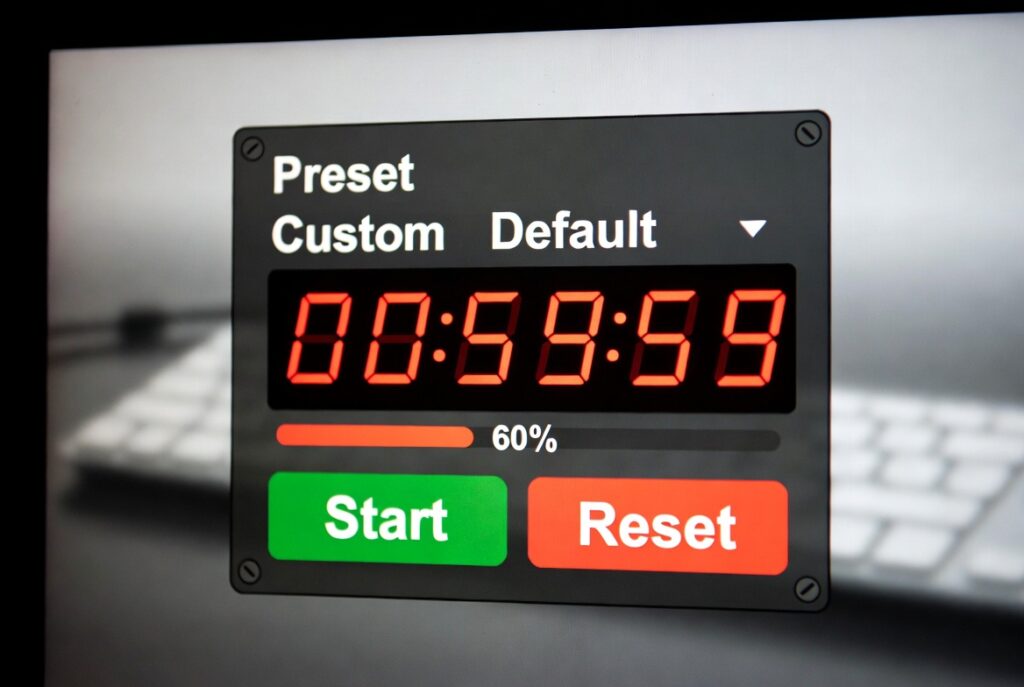
Countdown Timer Generator
Create a shareable, live countdown to an exact date and time. Works offline and on WordPress.
Introduction:
Why do limited-time offers pull in 30% more conversions than those open-ended promos? It all comes down to FOMO—fear of missing out. There’s just something about seeing a clock tick down that makes people act fast. You throw a countdown timer on your site, and suddenly, shoppers feel the rush. Clicks and sales start spiking. But here’s the catch: building your own timer from scratch takes hours of tricky JavaScript. Not exactly how you want to spend your afternoon. That’s where a Countdown Timer Generator steps in and saves the day.
Picture this: you’re rolling out a Black Friday deal, launching a new product, or opening up webinar registration. You want a sharp, reliable countdown to crank up urgency. With the right tool, you can whip one up in minutes, not hours. No fussing with code. Just focus on how it looks and fits your brand. Whether you run an online store, manage marketing, or develop websites, a countdown generator turns that abstract “urgency” idea into real results. Let’s dive in and see how you can actually put these timers to work.
So, what exactly is a Countdown Timer Generator?
Think of it as a web app that lets you build custom countdown clocks without touching any code. Instead of wrestling with JavaScript dates, CSS tweaks, or tricky layouts, you just use simple forms, color pickers, and live previews. When you’re done, the generator spits out clean HTML, CSS, and JavaScript—ready for you to drop straight onto your site.
Suddenly, one of the most powerful psychology tricks in marketing is at your fingertips. Want a classic days-hours-minutes timer? Go for it. Animated circular progress? Sure. Flip-style numbers that really pop? Why not. Anyone can make a polished timer—no tech headaches required.
Key Features You Actually Need
Not all countdown generators are created equal. A good one should give you:
A date and time picker—Set your exact deadline down to the second.
Display options—Pick from classic digital, circular, or flip-style timers.
Full style control—Change colors, fonts, sizes, backgrounds, borders, whatever you need to match your brand.
Responsive design—Make sure your timer looks great on desktop, tablet, or phone.
Expiration actions—Choose what happens when the timer hits zero: hide it, show a message, or redirect to another page.
Multiple output formats—Grab HTML for your site, a WordPress shortcode, or even an image timer for emails.
Live preview—See changes as you make them, so there are no surprises.
How to Set Up Your Countdown Timer in 5 Steps
Let’s get practical. Here’s how to go from idea to live countdown in just a few minutes.
- Set Your Date and Time
Start by picking your deadline. Use the date and time picker—the one that lets you set it down to the second. If you’ve got customers around the world, look for timezone options so everyone sees the right countdown. This is where you set when your sale ends, your launch starts, or your webinar goes live. Get this right; your audience needs to trust the timer. - Pick Your Display Style
Decide how your timer will look. Digital numbers (like 23:15:59) are clear and precise. Circular timers make the ticking clock feel visual. Flip numbers? They’re dramatic and eye-catching. Think about your target audience—B2B folks usually want it clean and simple, while consumer brands can go bold and creative. - Customize the Look
Now, match the timer to your site’s vibe. Use the color picker to fit your brand. Adjust fonts and sizes for easy reading. Maybe add a subtle background or border to help it stand out, but don’t let it steal the show from your main content. The timer should grab attention, not overwhelm everything else. - Check Responsiveness
Preview your timer on different devices. Good generators let you see it on mobile, tablet, and desktop. Make sure the text stays readable and the layout doesn’t break. Most of your visitors are on their phones these days, so this step matters. - Generate and Add the Code
Happy with the design? Hit “Generate Code.” You’ll get three chunks: HTML, CSS, and JavaScript. Copy and paste them into your site, or use the embed code if you want it even easier. Double-check that your timer starts counting down right away.
Real Examples That Boost Conversions
Where you put your timer makes a huge difference. Here’s how smart brands use them:
E-commerce Sales—Stick the timer on product pages during flash sales. Watch conversions jump by 22–35%. Try “Sale ends in [timer]” on banners.
Webinar or Event Signups—Add a countdown to landing pages. It cuts down last-minute signups and increases urgency. “Live starts in [timer]” right next to the registration form works well.
Product Launches—Build up hype before a release. “Available in [timer]” on a coming soon page keeps visitors checking back.
Limited Quantity or Seats—Pair the timer with stock numbers for extra pressure. “Only 5 left at this price! Offer expires in [timer].”
Email Campaigns—Drop image-based timers into promo emails. Even inboxes get a sense of urgency.
The bottom line? Countdown timers aren’t just eye candy—they’re one of the simplest tools for driving action, and with the right generator, anyone can use them.
Checkout our new tool Color Scheme Generator here….
FAQs
Will the timer work if someone leaves my webpage open?
Yes, quality generators use the user’s system clock rather than counting down from page load. Even if the tab is inactive for hours, when the user returns, the timer will show the accurate remaining time based on the actual deadline.
Can I use the same timer on multiple pages?
Absolutely. Once generated, the code can be embedded on any number of pages across your site. Some generators even provide a unique URL or shortcode for easy multi-page implementation.
Do countdown timers work on mobile devices?
Yes, when generated with responsive design principles. The best generators automatically optimize for touch devices and smaller screens. Always test on actual mobile devices before going live.
Can I change the date after implementing the timer?
With most generators, you need to regenerate the code with the new date and replace it on your site. Some advanced systems offer dashboard management where you can update dates without changing code.